
Connect Claude Desktop to API Token Router
Claude Desktop is Anthropic's official desktop app, with Claude Code built in. There are two ways to connect it to API Token Router: one-click setup with API Token Router Desktop (recommended), or manual setup with CC Switch.
Claude Desktop is Anthropic's official desktop app, with Claude Code built in. Use CC Switch to connect it to API Token Router.
New accounts start with a $0 balance — top up before your first request. Top up from $5. If a request returns 402 with "wallet balance is insufficient", your balance is empty — your base URL and key are fine. Top up and retry.
No international card? Top up with USDT: click Pay with crypto in the top-up dialog and pay with USDT, USDC or ETH from Binance, OKX or any exchange app — the checkout shows which networks your amount supports (BEP20 works from $5). No wallet extension needed (guide).
Option 1: One-click setup with API Token Router Desktop (recommended)
API Token Router Desktop is API Token Router's official desktop app. It can download Claude Desktop, connect it to API Token Router, and apply the model configuration for you, so the whole setup can be finished in a few minutes.
Download for Windows Download for macOS
Tip: On Windows, if a security warning appears, click "More info" then "Run anyway". On macOS, right-click the app and choose "Open".
After installation, create or sign in to your account.
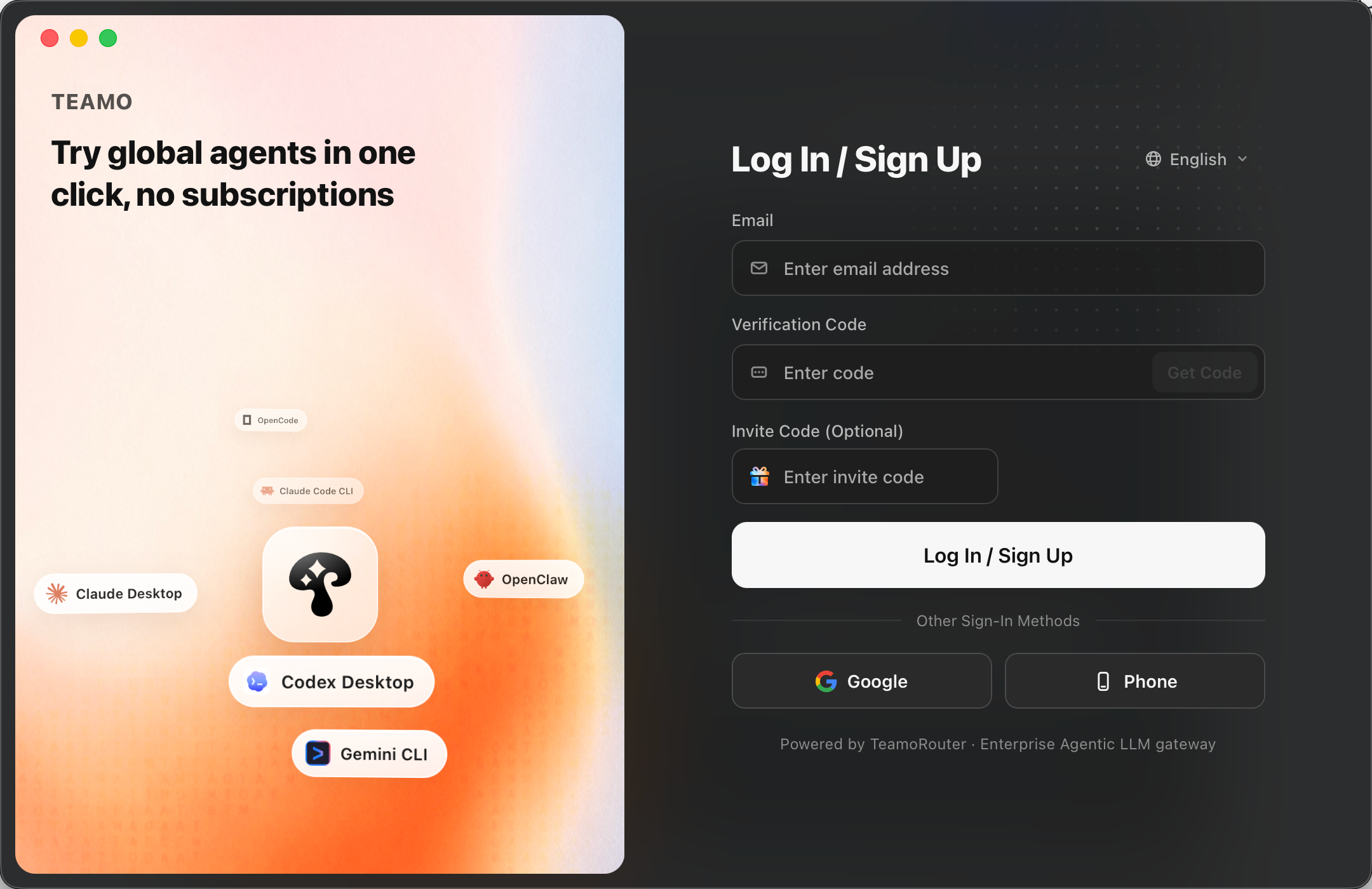
In API Token Router Desktop, find Claude Desktop and install it, or download it yourself from the Claude download page.
Then click "Connect to API Token Router". API Token Router Desktop will automatically connect your local Claude Desktop app to API Token Router.
To switch back to an official Anthropic subscription, click "Disconnect API Token Router". This removes the API Token Router connection from Claude Desktop.
When the setup is complete, open Claude Desktop and start using it normally.
You can review usage for each request in the API Token Router dashboard.
Option 2: Manual setup with CC Switch
Set up with CC Switch
CC Switch is a graphical tool for managing and switching the Claude endpoint and key configuration.
Install Claude Desktop and CC Switch
If Claude Desktop and CC Switch are already installed, skip to the next section.
Install Claude Desktop
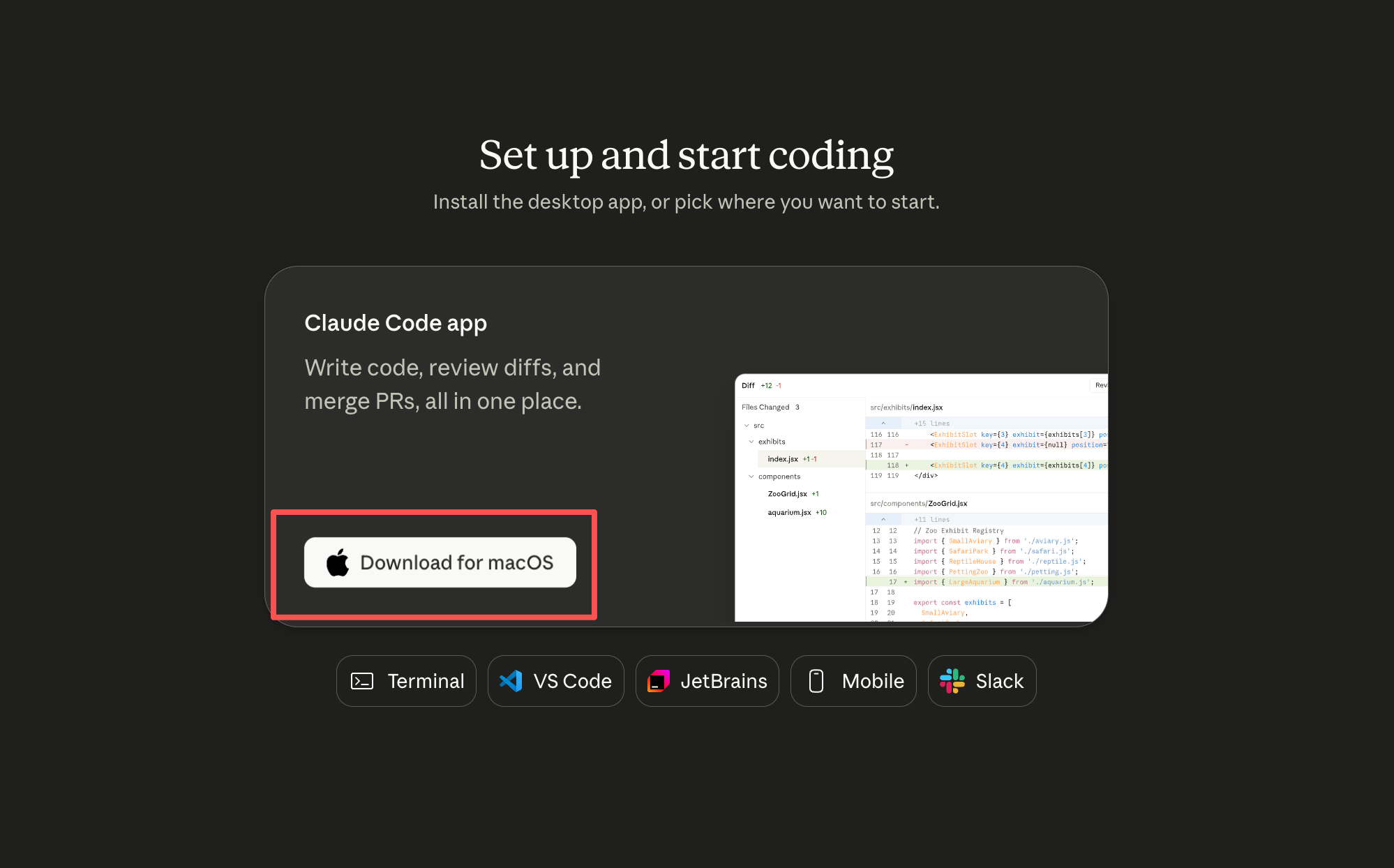
- Download the Claude app for your system from the Claude website, then install it.
Install CC Switch
Use version 3.16.5 or later. macOS users can install it with Homebrew:
brew install --cask cc-switch
Or download the installer from CC Switch Releases:
- macOS:
.dmgor.zip - Windows:
.msiinstaller or portable.zip - Linux:
.deb,.rpm, or.AppImage
If macOS Gatekeeper blocks the first launch, open System Settings, go to Privacy & Security, and allow the app.
Connect API Token Router with CC Switch
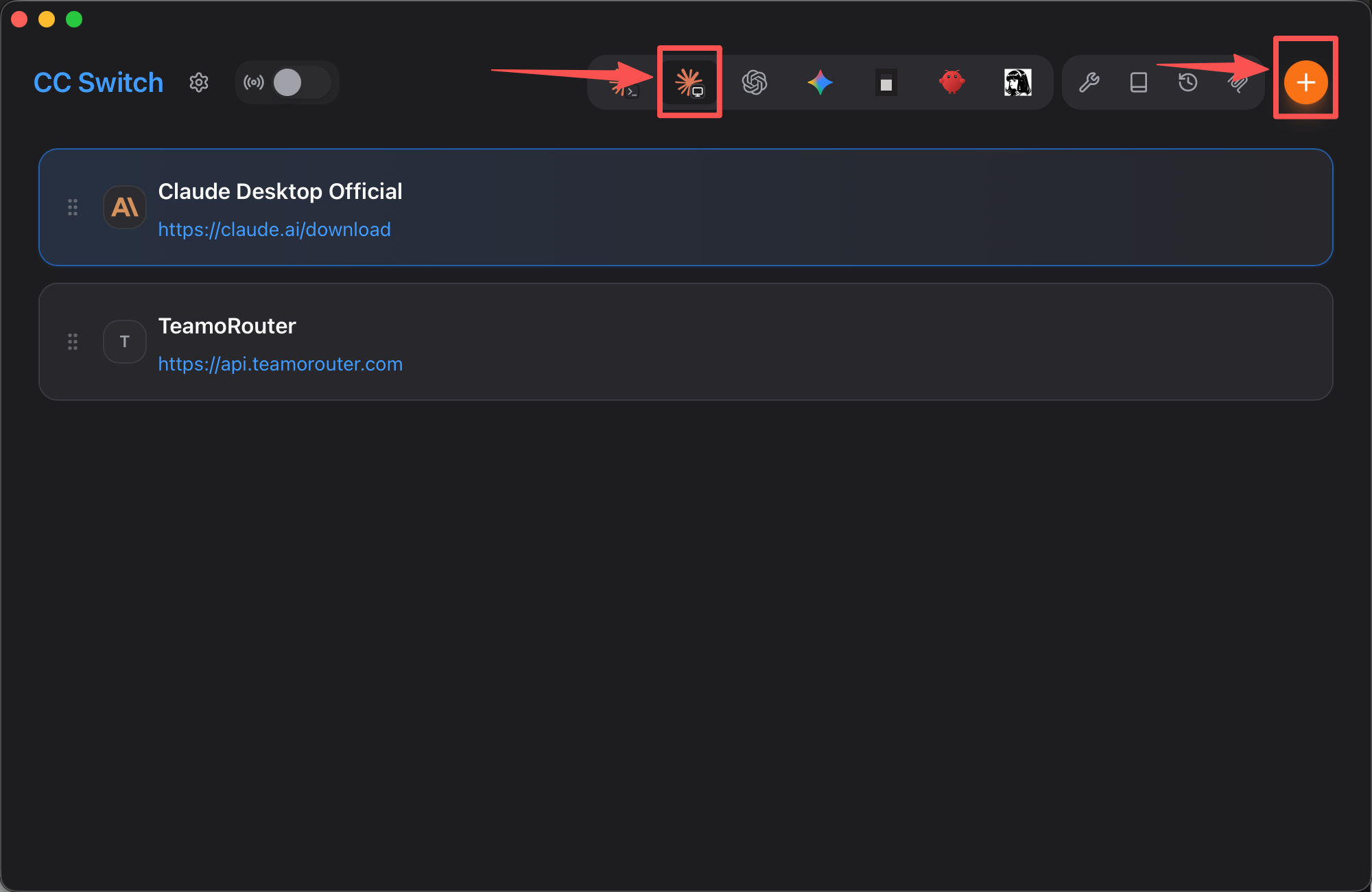
In the Claude Desktop tab of CC Switch, click the orange plus button in the top-right corner.
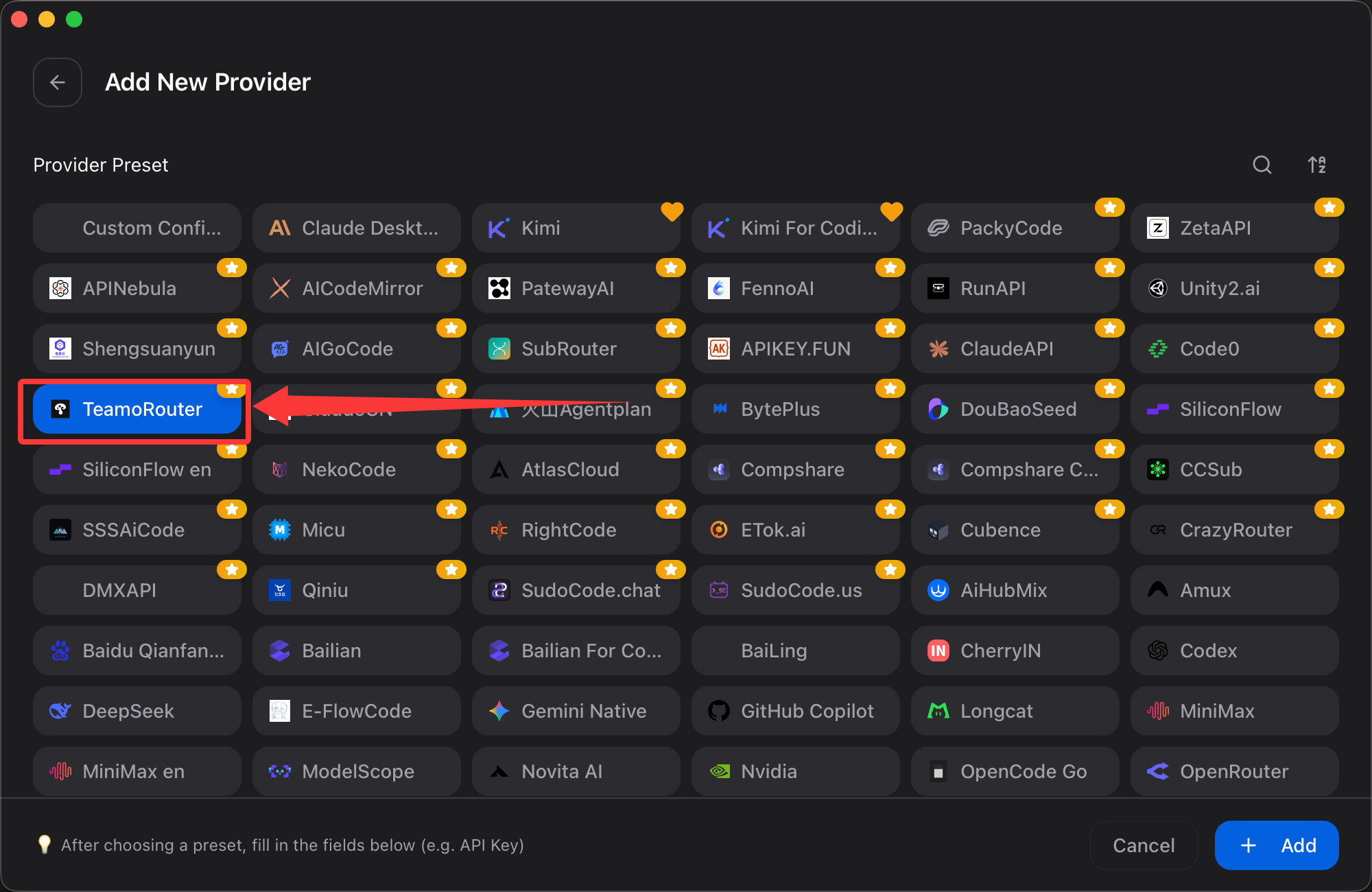
- Find API Token Router in Preset providers, or search for API Token Router.
- Enter the API key you created in the API Token Router dashboard.
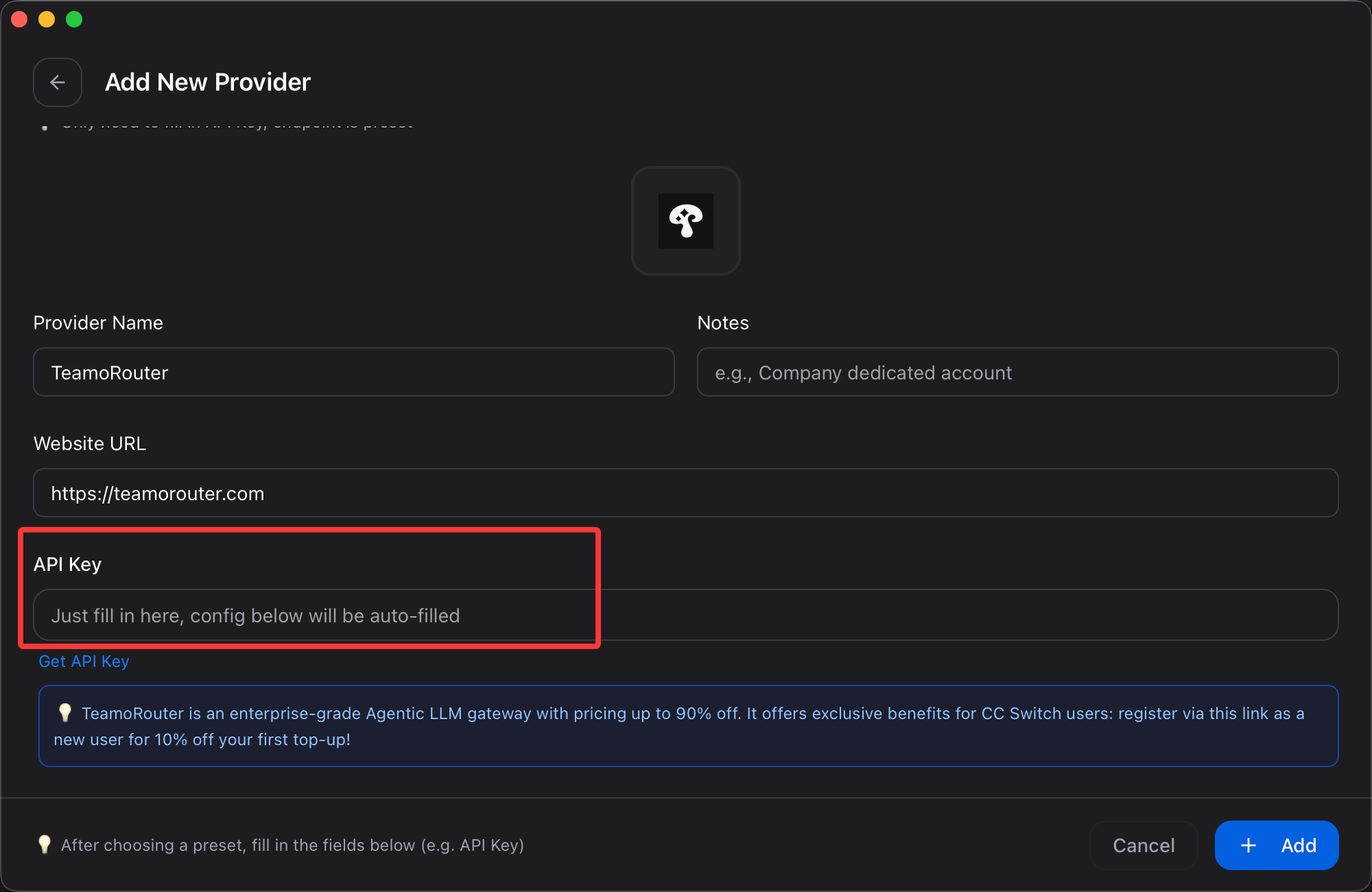
- Click Save in the lower-right corner.
Enable API Token Router on the home screen, then open Claude Desktop.
If Claude Desktop is already open, restart it once.
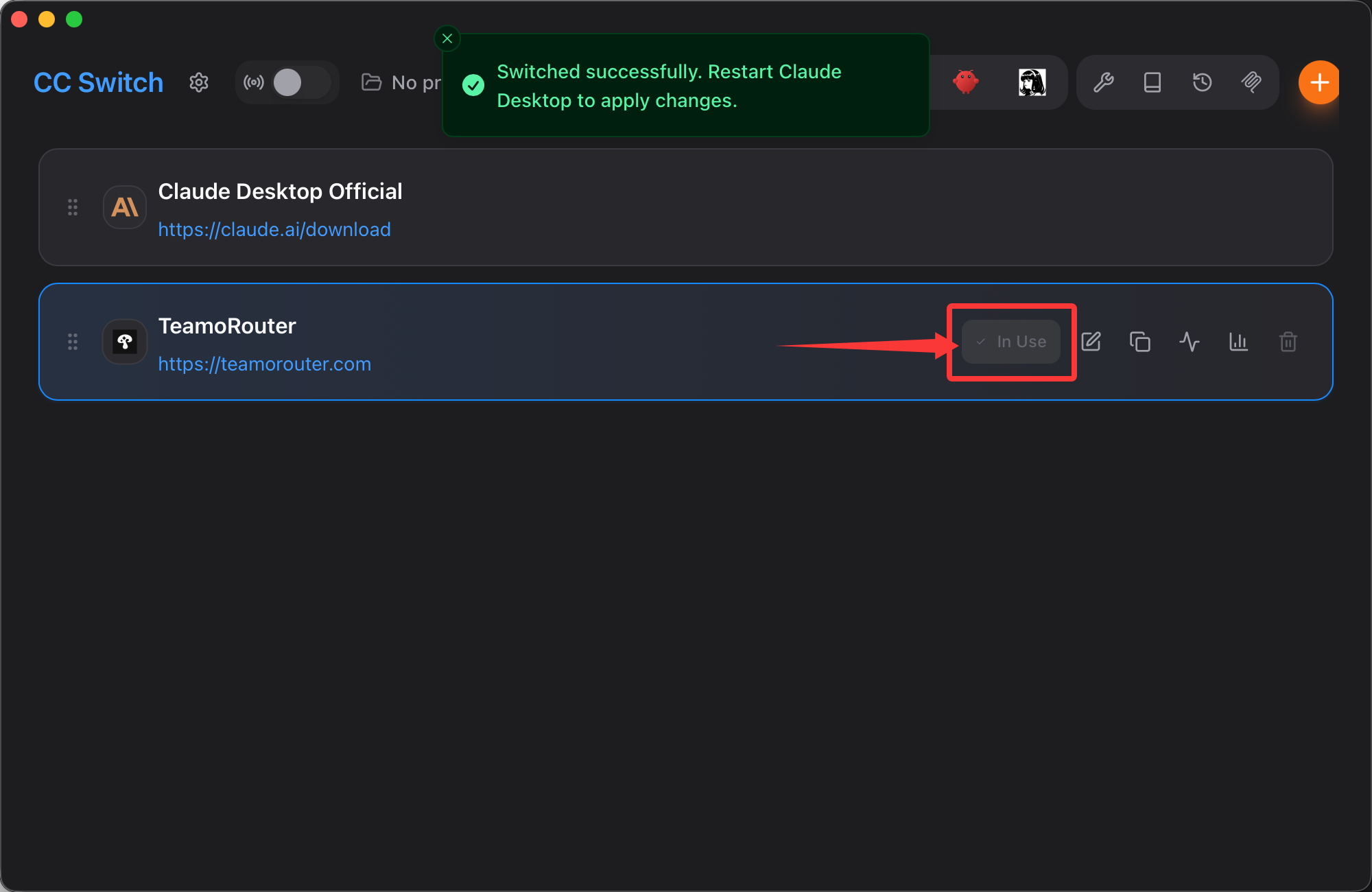
Open Claude Desktop and start using it.
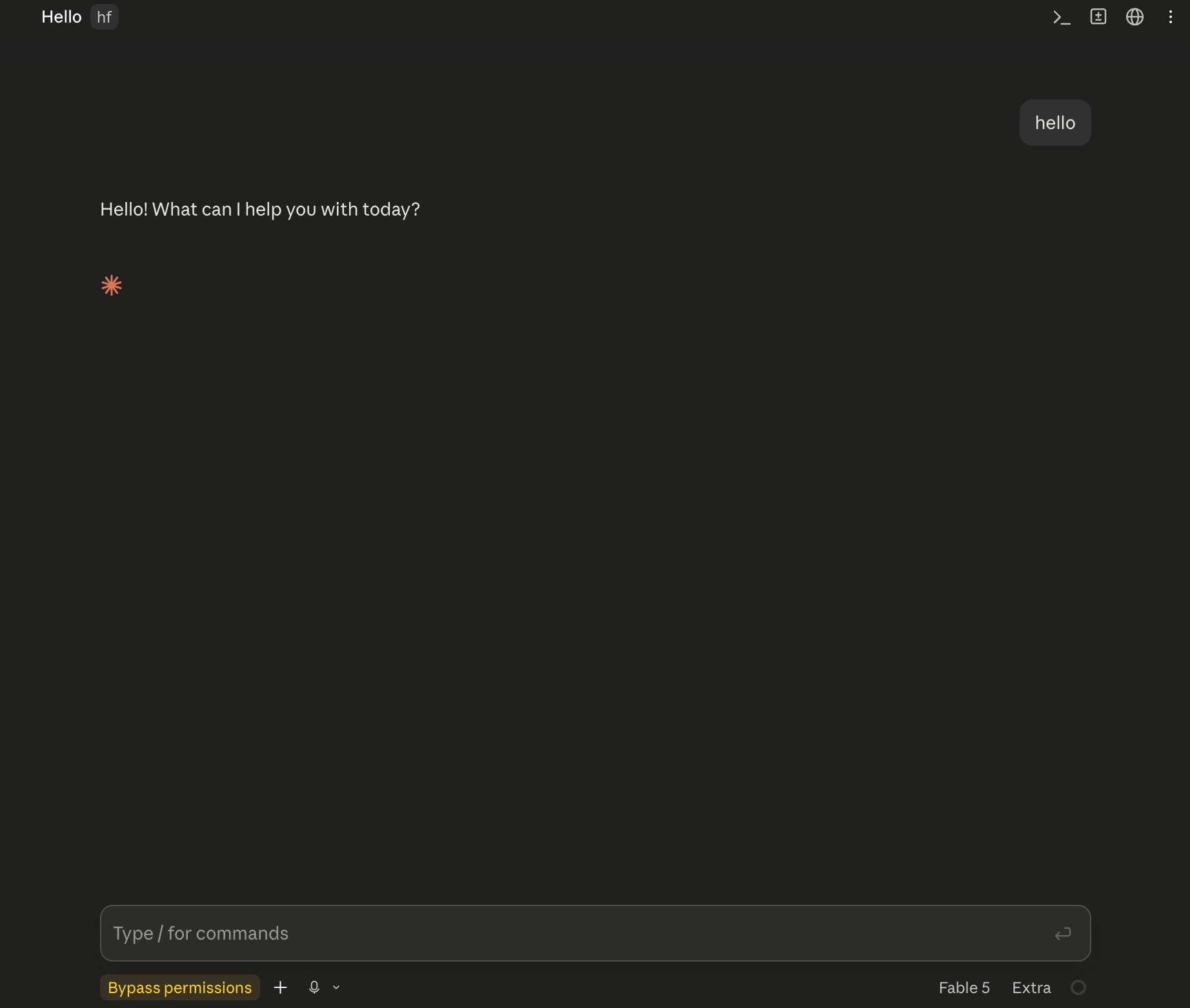
You can review usage for each request in the API Token Router dashboard.
Without extra tools: configure inside Claude Desktop (Cowork and Code)
Claude Desktop has a built-in third-party inference setting, and both Cowork and Code use the gateway you set there. If you'd rather not install CC Switch, configure it directly (menu names may vary slightly by app version):
- Turn on Developer Mode: in the menu bar, choose Help → Troubleshooting → Enable Developer Mode. The app may restart, and a Developer menu then appears in the menu bar.
- Choose Developer → Configure Third-Party Inference and set the connection type to Gateway.
- Fill in the fields:
| Field | Value |
|---|---|
| Gateway base URL | https://api.apitokenrouter.com (no /v1) |
| Gateway API key | The API key from your API Token Router dashboard |
| Auth scheme (if shown) | Bearer |
| Custom inference headers | Leave empty |
-
Models: if the model list is empty, or you only want a few models, add model IDs under Models, for example
claude-opus-5-5andclaude-sonnet-5-5. -
Save and apply the changes, then fully quit Claude Desktop and open it again.
Send a message in Cowork or Code, and the request shows up with its usage in the API Token Router dashboard.
Troubleshooting
On Windows, if Claude Desktop shows the following error:
Virtual Machine Platform not available
Claude's workspace requires the Virtual Machine Platform on Windows. Enable this feature, then restart.
Follow these steps and it will work normally:
- Press
Win + R, typeoptionalfeatures, and press Enter. - Find and check "Virtual Machine Platform", then click OK.
- Restart your computer, then open Claude Desktop again.