
Install Codex Desktop and Connect It to API Token Router
Codex Desktop is OpenAI's desktop AI coding assistant.
Codex Desktop is OpenAI's desktop AI coding assistant. Follow the steps below to install it and connect it to API Token Router.
New accounts start with a $0 balance — top up before your first request. Top up from $5. If a request returns 402 with "wallet balance is insufficient", your balance is empty — your base URL and key are fine. Top up and retry.
No international card? Top up with USDT: click Pay with crypto in the top-up dialog and pay with USDT, USDC or ETH from Binance, OKX or any exchange app — the checkout shows which networks your amount supports (BEP20 works from $5). No wallet extension needed (guide).
Option 1: One-click setup with API Token Router Desktop (recommended)
API Token Router Desktop is API Token Router's official desktop app. It can download Codex Desktop, connect it to API Token Router, and apply the model configuration for you, so the whole setup can be finished in a few minutes.
Download for Windows Download for macOS
Tip: On Windows, if a security warning appears, click "More info" then "Run anyway". On macOS, right-click the app and choose "Open".
After installation, create or sign in to your account.
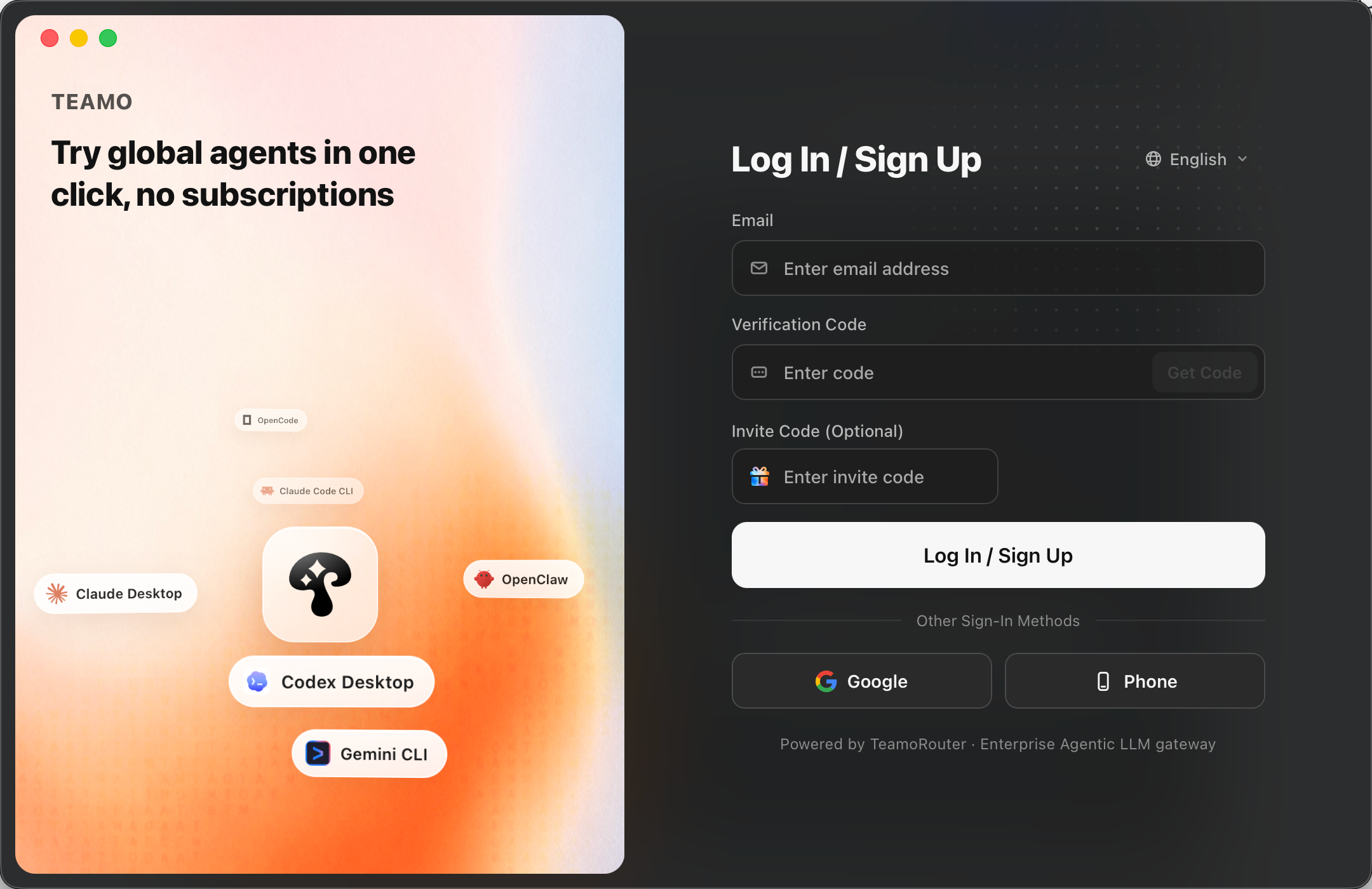
In API Token Router Desktop, find Codex Desktop and install it, or download it yourself from the OpenAI download page.
Then click the “Connect to API Token Router” button. A model selection dialog will appear; select the model you want to connect.
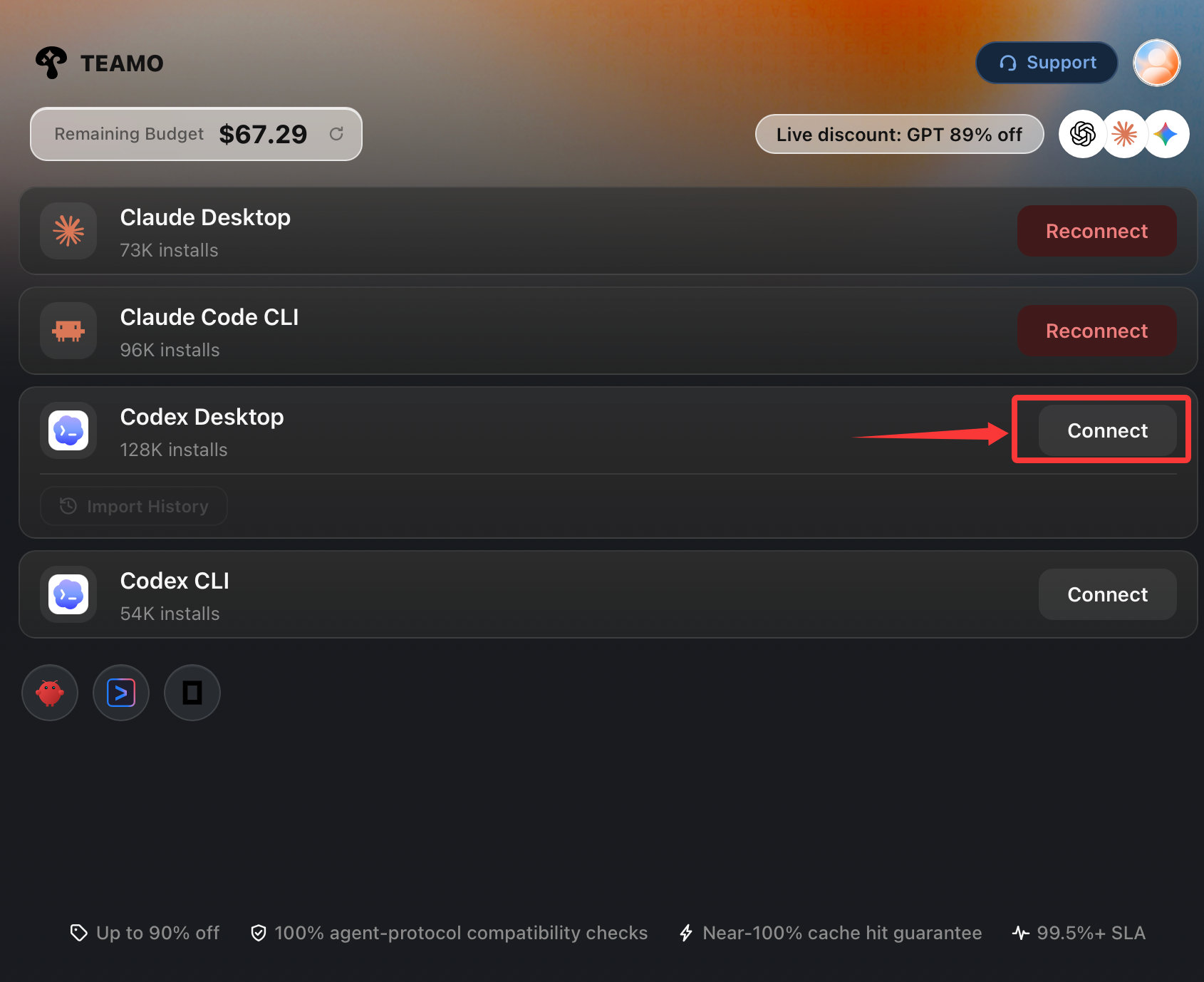
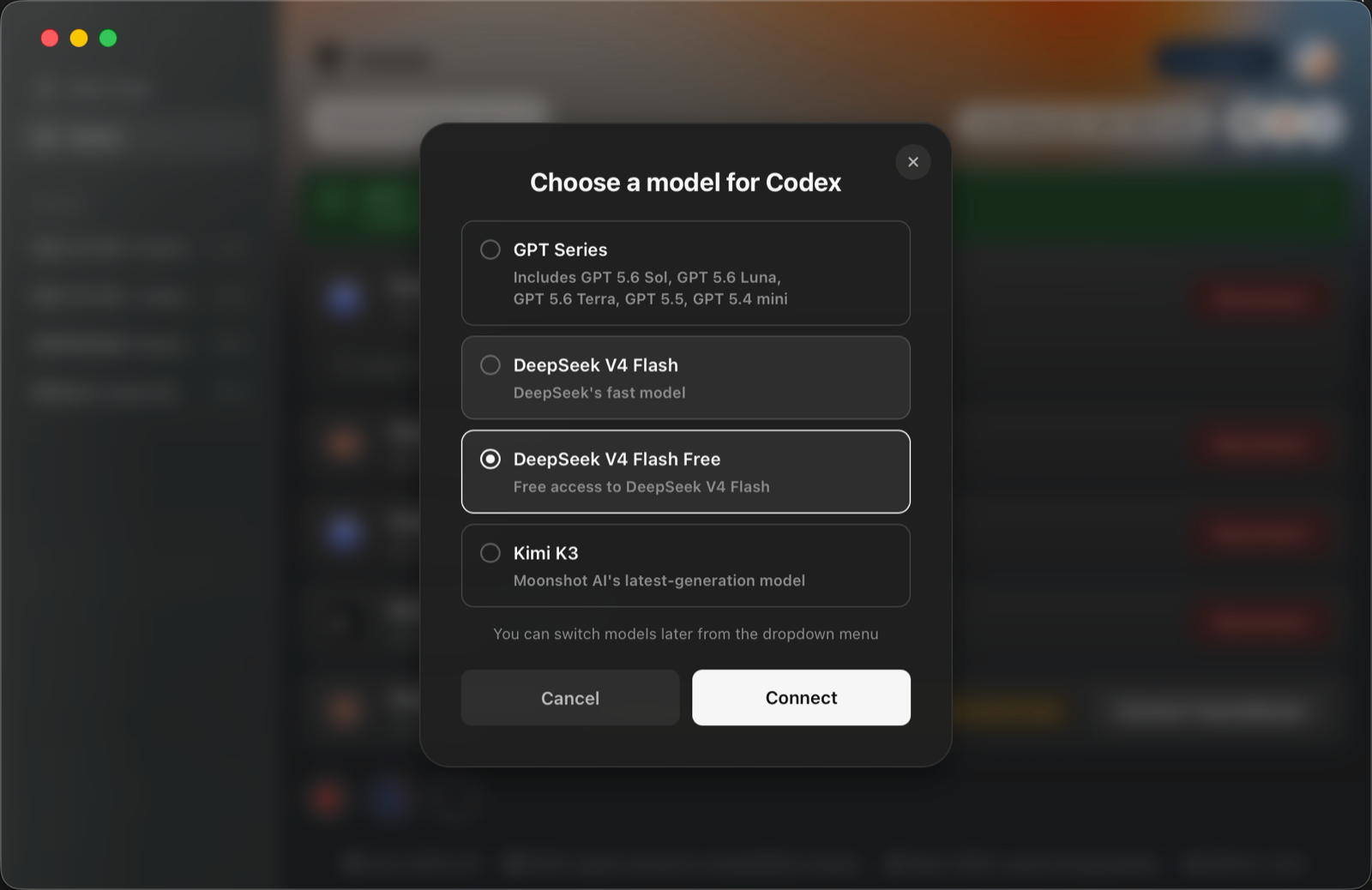
The client will automatically connect and configure Codex Desktop on your computer with API Token Router.
To switch back to an official OpenAI subscription, click "Disconnect API Token Router". This removes the API Token Router connection from Codex Desktop.
Once setup is complete, click “Open App” to start using Codex normally.
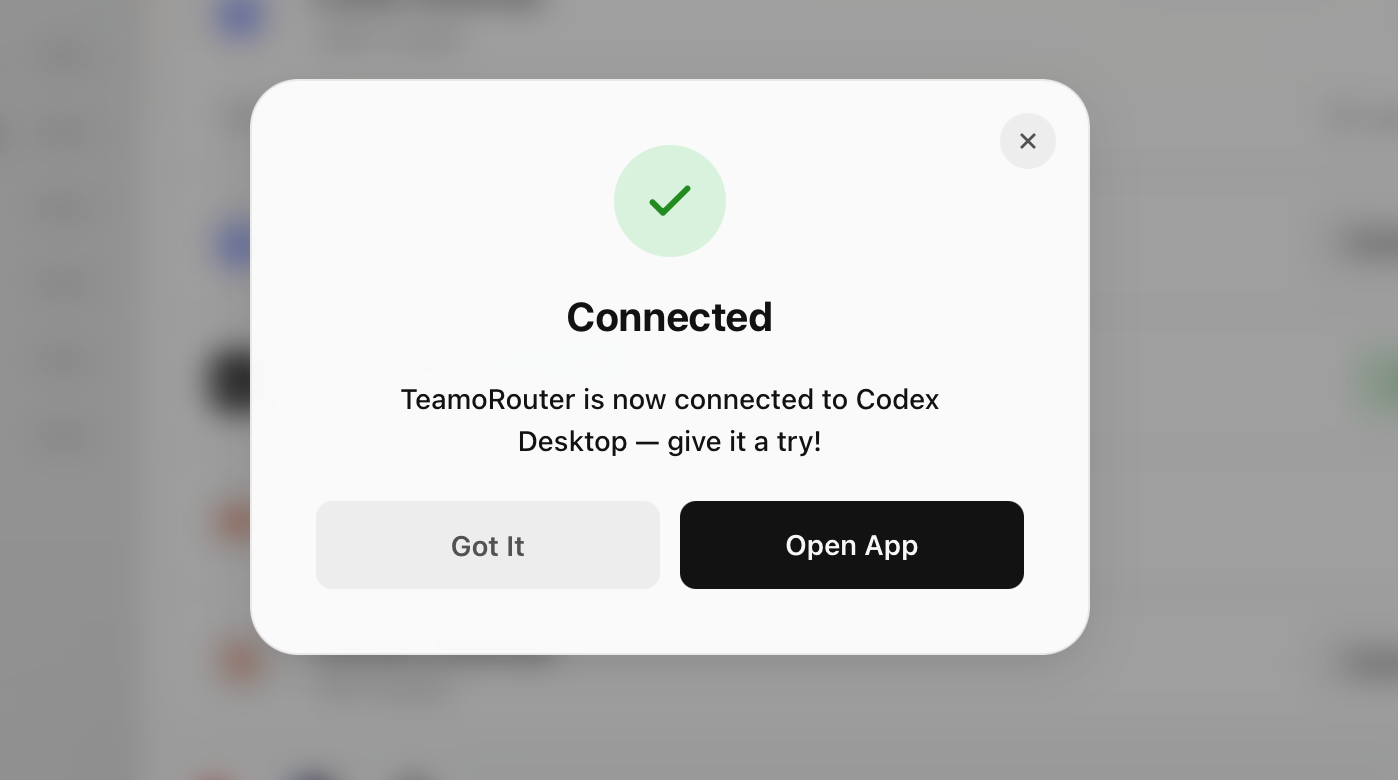
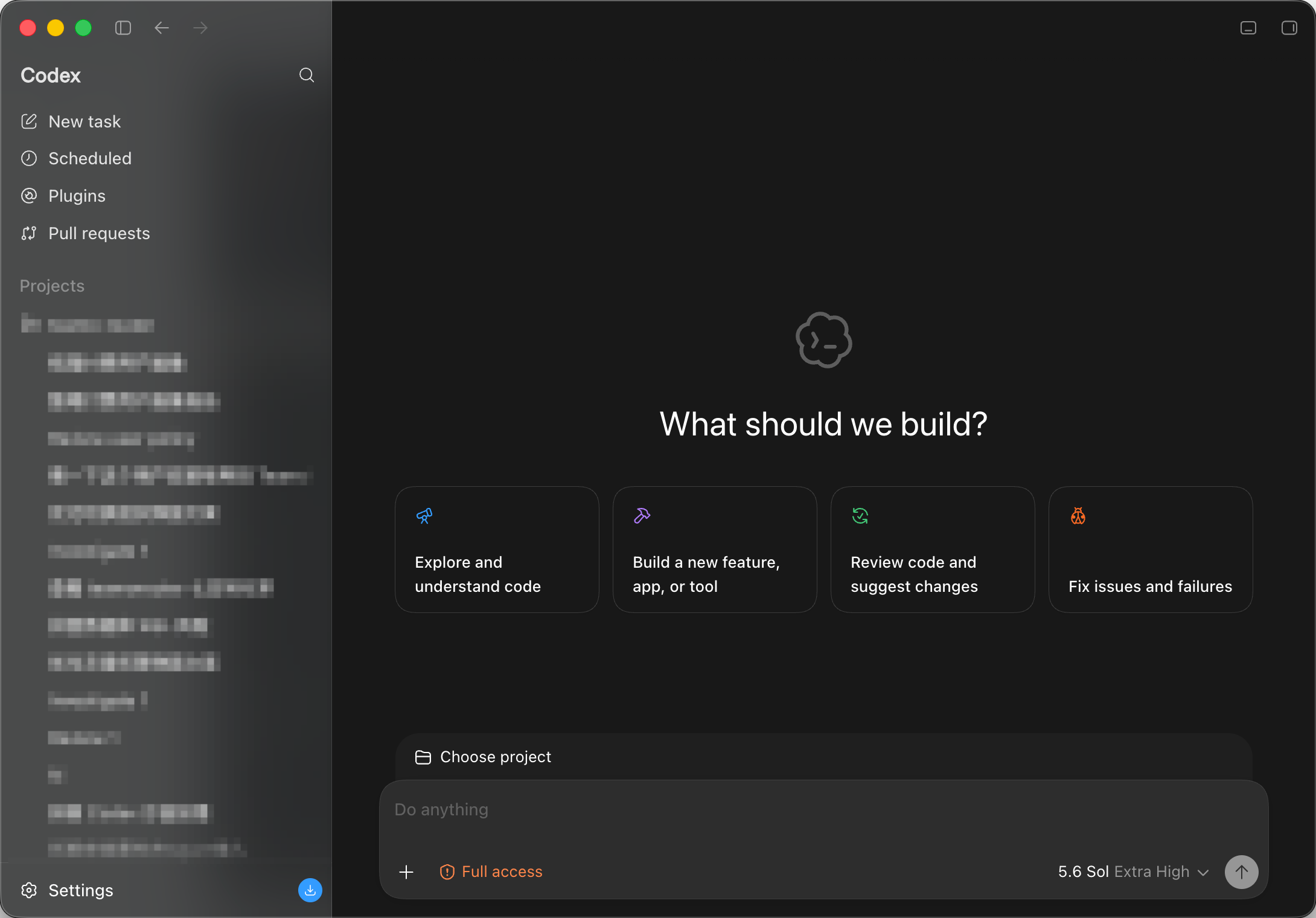
You can review usage for each request in the API Token Router dashboard.
Option 2: Manual setup (not recommended)
If you do not want to use API Token Router Desktop, follow this section to install Codex Desktop and connect it to API Token Router manually.
Download Codex Desktop manually
Download Codex Desktop
Skip this section if Codex Desktop is already installed.
-
Download Codex Desktop for your system from the official OpenAI website, then install it.
-
Open the installer and finish the installation. The installed app is named ChatGPT; that is Codex Desktop. Linux users should use the CLI version for now. See Connect Codex CLI to API Token Router.
Update the system configuration file
macOS / Linux
Open a terminal, paste the full block below, and press Enter:
mkdir -p ~/.codex && cat > ~/.codex/config.toml <<'EOF'
model_provider = "apitokenrouter"
model = "gpt-5.6-sol"
model_reasoning_effort = "high"
[model_providers.apitokenrouter]
name = "API Token Router"
base_url = "https://api.apitokenrouter.com/v1"
env_key = "OPENAI_API_KEY"
wire_api = "responses"
EOF
Windows
Open PowerShell, paste the full block below, and press Enter:
New-Item -ItemType Directory -Force -Path "$HOME\.codex" | Out-Null
@'
model_provider = "apitokenrouter"
model = "gpt-5.6-sol"
model_reasoning_effort = "high"

[model_providers.apitokenrouter]
name = "API Token Router"
base_url = "https://api.apitokenrouter.com/v1"
env_key = "OPENAI_API_KEY"
wire_api = "responses"
'@ | Set-Content -Path "$HOME\.codex\config.toml" -Encoding UTF8
Set the API key
Replace <your-API Token Router-key> with your own API key. You can create it in the API Token Router dashboard.
macOS
echo 'export OPENAI_API_KEY="<your-API Token Router-key>"' >> ~/.zshrc
source ~/.zshrc
Linux
echo 'export OPENAI_API_KEY="<your-API Token Router-key>"' >> ~/.bashrc
source ~/.bashrc
Windows
[Environment]::SetEnvironmentVariable("OPENAI_API_KEY", "<your-API Token Router-key>", "User")
Windows users: after running the command above, fully close Codex Desktop and open it again so it can read the new environment variable.
Launch Codex Desktop
Open Codex Desktop (the app named ChatGPT). If it was already running, quit it completely and reopen it.
You can review usage for each request in the API Token Router dashboard.